Compare commits
13 Commits
improve-te
...
main
| Author | SHA1 | Date | |
|---|---|---|---|

|
a586dd4a67 | ||
|
|
8bcbdd1c9f | ||

|
68ca0e12dc | ||
|
|
2726313b82 | ||
|
|
f24ed2182a | ||

|
e3a70c1b76 | ||
|
|
859e75a7c4 | ||
|
|
cfeacb527a | ||

|
847f2adbbf | ||
|
|
a14fd6916f | ||
|
|
0ce45d4860 | ||
|
|
c7c35b94ad | ||
|
|
d6e3466faf |
@ -133,6 +133,7 @@ namespace Nop.Plugin.Payments.BTCPayServer
|
||||
"<ul>" +
|
||||
" <li>The \"BTCPay Url,\" \"API Key,\" \"BTCPay Store ID,\" and \"WebHook Secret\" fields must be filled out, then save.</li>" +
|
||||
" <li>Read detailed step by step <a href =\"https://github.com/btcpayserver/nopcommerce?tab=readme-ov-file#manual-configuration\" target=\"_blank\"> instructions on how to manually configure</a>. </li>" +
|
||||
"</ul>",
|
||||
|
||||
["Plugins.Payments.BTCPayServer.WebHookInfo"] = "Here is the URL to set for the WebHook creation in BTCPay : ",
|
||||
|
||||
@ -298,7 +299,7 @@ namespace Nop.Plugin.Payments.BTCPayServer
|
||||
// implement process payment
|
||||
try
|
||||
{
|
||||
|
||||
|
||||
var myStore = await _storeService.GetStoreByIdAsync(processPaymentRequest.StoreId);
|
||||
var currency = await _currencyService.GetCurrencyByIdAsync(_currencySettings.PrimaryStoreCurrencyId);
|
||||
var lang = await _languageService.GetLanguageByIdAsync(myStore.DefaultLanguageId);
|
||||
@ -359,7 +360,7 @@ namespace Nop.Plugin.Payments.BTCPayServer
|
||||
var result = new RefundPaymentResult();
|
||||
try
|
||||
{
|
||||
var sUrl = await _btcPayService.CreateRefund(_btcPaySettings, refundPaymentRequest);
|
||||
var sUrl = await _btcPayService.CreateRefund(_btcPaySettings, refundPaymentRequest);
|
||||
result.NewPaymentStatus = refundPaymentRequest.IsPartialRefund ? PaymentStatus.PartiallyRefunded : PaymentStatus.Refunded;
|
||||
await _orderService.InsertOrderNoteAsync(new OrderNote
|
||||
{
|
||||
@ -410,4 +411,4 @@ namespace Nop.Plugin.Payments.BTCPayServer
|
||||
}
|
||||
|
||||
}
|
||||
}
|
||||
}
|
||||
@ -27,8 +27,7 @@ using NUglify.Helpers;
|
||||
|
||||
namespace Nop.Plugin.Payments.BTCPayServer.Controllers
|
||||
{
|
||||
[AuthorizeAdmin]
|
||||
[Area(AreaNames.Admin)]
|
||||
[Area(AreaNames.ADMIN)]
|
||||
[AutoValidateAntiforgeryToken]
|
||||
public class PaymentBTCPayServerController : BasePaymentController
|
||||
{
|
||||
@ -75,9 +74,11 @@ namespace Nop.Plugin.Payments.BTCPayServer.Controllers
|
||||
|
||||
#region Methods
|
||||
|
||||
|
||||
[AuthorizeAdmin]
|
||||
public async Task<IActionResult> Configure()
|
||||
{
|
||||
if (!await _permissionService.AuthorizeAsync(StandardPermissionProvider.ManagePaymentMethods))
|
||||
if (!await _permissionService.AuthorizeAsync(StandardPermission.Configuration.MANAGE_PAYMENT_METHODS))
|
||||
return AccessDeniedView();
|
||||
|
||||
//load settings for a chosen store scope
|
||||
@ -111,16 +112,21 @@ namespace Nop.Plugin.Payments.BTCPayServer.Controllers
|
||||
}
|
||||
|
||||
var myStore = _storeContext.GetCurrentStore();
|
||||
var adminUrl = new Uri(new Uri(myStore.Url),
|
||||
//var adminUrl = new Uri(new Uri(myStore.Url),
|
||||
// _linkGenerator.GetPathByAction(HttpContext, "GetAutomaticApiKeyConfig", "PaymentBTCPayServer",
|
||||
// new { ssid = myStore.Id, btcpayuri = btcpayUri }));
|
||||
var adminUrl = new Uri(new Uri("https://" + Request.Host.Value),
|
||||
_linkGenerator.GetPathByAction(HttpContext, "GetAutomaticApiKeyConfig", "PaymentBTCPayServer",
|
||||
new { ssid = myStore.Id, btcpayuri = btcpayUri }));
|
||||
|
||||
|
||||
var uri = BTCPayServerClient.GenerateAuthorizeUri(btcpayUri,
|
||||
new[]
|
||||
{
|
||||
Policies.CanCreateInvoice, // create invoices for payment
|
||||
Policies.CanViewInvoices, // fetch created invoices to check status
|
||||
Policies.CanModifyInvoices, // able to mark an invoice invalid in case merchant wants to void the order
|
||||
Policies.CanModifyStoreWebhooks, // able to create the webhook required automatically
|
||||
Policies.CanModifyWebhooks, // able to create the webhook required automatically
|
||||
Policies.CanViewStoreSettings, // able to fetch rates
|
||||
Policies.CanCreateNonApprovedPullPayments // able to create refunds
|
||||
},
|
||||
@ -130,9 +136,10 @@ namespace Nop.Plugin.Payments.BTCPayServer.Controllers
|
||||
|
||||
|
||||
[HttpPost]
|
||||
[AuthorizeAdmin]
|
||||
public async Task<IActionResult> Configure(ConfigurationModel model, string command = null)
|
||||
{
|
||||
if (!await _permissionService.AuthorizeAsync(StandardPermissionProvider.ManagePaymentMethods))
|
||||
if (!await _permissionService.AuthorizeAsync(StandardPermission.Configuration.MANAGE_PAYMENT_METHODS))
|
||||
return AccessDeniedView();
|
||||
|
||||
//load settings for a chosen store scope
|
||||
|
||||
@ -36,7 +36,7 @@ namespace Nop.Plugin.Payments.BTCPayServer.Controllers
|
||||
|
||||
|
||||
[HttpPost]
|
||||
public async Task<IActionResult> Process([FromHeader(Name = "BTCPAY-SIG")] string BtcPaySig)
|
||||
public async Task<IActionResult> Process([FromHeader(Name = "BTCPAY-Sig")] string BtcPaySig)
|
||||
{
|
||||
try
|
||||
{
|
||||
|
||||
@ -1,6 +1,6 @@
|
||||
<Project Sdk="Microsoft.NET.Sdk">
|
||||
<PropertyGroup>
|
||||
<TargetFramework>net7.0</TargetFramework>
|
||||
<TargetFramework>net9.0</TargetFramework>
|
||||
<Copyright>Copyright © Nisaba Solutions</Copyright>
|
||||
<Company>Nisaba Solutions</Company>
|
||||
<Authors>Nisaba Solutions</Authors>
|
||||
@ -45,7 +45,7 @@
|
||||
<Folder Include="Services\" />
|
||||
</ItemGroup>
|
||||
<ItemGroup>
|
||||
<PackageReference Include="BTCPayServer.Client" Version="1.7.3" />
|
||||
<PackageReference Include="BTCPayServer.Client" Version="2.0.1" />
|
||||
</ItemGroup>
|
||||
<!-- This target execute after "Build" target -->
|
||||
<Target Name="NopTarget" AfterTargets="Build">
|
||||
|
||||
6
Nop.Plugin.Payments.BtcPayServer.csproj.user
Normal file
6
Nop.Plugin.Payments.BtcPayServer.csproj.user
Normal file
@ -0,0 +1,6 @@
|
||||
<?xml version="1.0" encoding="utf-8"?>
|
||||
<Project ToolsVersion="Current" xmlns="http://schemas.microsoft.com/developer/msbuild/2003">
|
||||
<PropertyGroup>
|
||||
<_LastSelectedProfileId>C:\CODES-SOURCES\NopCommerce2\src\Plugins\Nop.Plugin.Payments.BTCPayServer\Properties\PublishProfiles\FolderProfile.pubxml</_LastSelectedProfileId>
|
||||
</PropertyGroup>
|
||||
</Project>
|
||||
106
README.md
106
README.md
@ -1,40 +1,106 @@
|
||||
# BTCPay plugin for NopCommerce - accept Bitcoin payments
|
||||
# BTCPay Server – Accept Bitcoin payments in nopCommerce
|
||||
|
||||
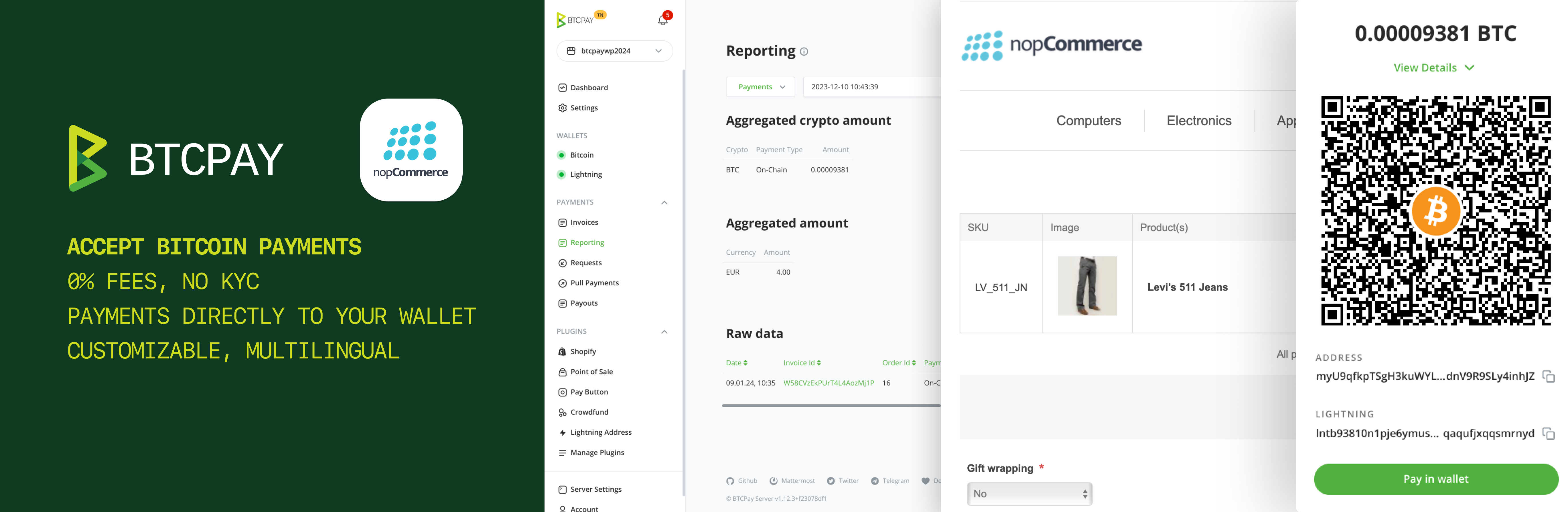
|
||||
|
||||
## Plugin Overview
|
||||
|
||||
This plugin allows you to easily integrate Bitcoin payments into your NopCommerce website using BTCPay Server — a free, self-hosted and open-source payment gateway solution designed to revolutionize Bitcoin payments. Our seamless integration with NopCommerce ensures a hassle-free connection to your self-hosted BTCPay Server.
|
||||
This plugin allows you to easily start accepting Bitcoin payments in your nopCommerce e-commerce store using BTCPay Server — a free, self-hosted and open-source Bitcoin payment gateway.
|
||||
|
||||
Experience the simplicity of accepting Bitcoin payments with just a few straightforward steps. You can configure the plugin either automatically or manually, depending on your preferences and requirements.
|
||||
## Features
|
||||
|
||||
## Automatic Configuration
|
||||
- 0% Fees: Enjoy a payment gateway with no fees. Yes, really!
|
||||
- No complicated KYC needed, you're your own self-hosted payment gateway
|
||||
- Automated invoice management and refunds
|
||||
- Simple and customizable checkout UX, available in 30+ languages
|
||||
- Direct payments to your wallet, no intermediary
|
||||
- Reporting and accounting – CSV exports
|
||||
- Real-time exchange price tracking for correct payment amounts
|
||||
- Community-driven support
|
||||
- Extensive documentation and video tutorials
|
||||
|
||||
1. Enter Url to your BTCPay Server into "BTCPay Url" field. (e.g. https://mainnet.demo.btcpayserver.org)
|
||||
2. Click on the "Configure automatically" button to be redirected to the API authorization page on your BTCPay server
|
||||
3. On BTCPay authorization page: Select the store you want to connect to your NopCommerce (you might need to login first)
|
||||
4. Click on "Authorize App" button and you will be redirected back to your NopCommerce
|
||||
3. The "API Key", "BTCPay Store ID" and "Webhook Secret" fields will be automatically filled and a webhook created
|
||||
4. Click "Save" button at the top right to persist the configuration
|
||||
5. Congrats, the configuration is now done.
|
||||
## Getting Started
|
||||
|
||||
## Manual Configuration
|
||||
### Download and installation
|
||||
|
||||
Ensure that the following fields are filled out: "BTCPay Url," "API Key," "BTCPay Store ID," and "WebHook Secret."
|
||||
The plugins can be downloaded through [nopCommerce Marketplace](https://www.nopcommerce.com/marketplace/) or [GitHub](https://github.com/btcpayserver/nopcommerce)
|
||||
|
||||
To create the BTCPay API key, [read this](https://docs.btcpayserver.org/VirtueMart/#22-create-an-api-key-and-configure-permissions).
|
||||
- Note: If you want to use the Refund feature, you must also add the "Create non-approved pull payments" permission. After a refund, an order note is created where you can copy the pull payments link and send to your customer (this order note is also visible by the customer). The customer can request the refund on that page.
|
||||
For installing the plugin through nopCommerce, upload the plugin directly from nopCommerce `Configuration > Local plugins > Upload plugin or a theme`. Ensure the plugin file is in ZIP format for successful upload. After uploading, find the plugin in the list, click "Install" next to it, and enable it if needed.
|
||||
|
||||
To create the BTCPay WebHook, [read this](https://docs.btcpayserver.org/VirtueMart/#23-create-a-webhook-on-btcpay-server) and use the default secret code generated by BTCPay.
|
||||
- Note: Other than in the guide you need to copy the Url shown in field "Webhook Url" from your configuration screen on NopCommerce.
|
||||
Alternatively you can manually upload the plugin to the `/plugins` folder in your nopCommerce directory and restart the application.
|
||||
|
||||
Once the plugin is uploaded, make sure to click `Install` button and `Restart application` to apply the changes.
|
||||
|
||||
## Plugin configuration
|
||||
|
||||
You can configure the plugin either automatically or manually. Automatic setup is much faster and recommended. To begin configuring the plugin, click on the `Configure` button in the
|
||||
|
||||
### Automatic Configuration
|
||||
|
||||
1. Enter the URL to your BTCPay Server into the **BTCPay URL** field. (e.g. https://mainnet.demo.btcpayserver.org)
|
||||
2. Click on the **Configure automatically** button to be redirected to the API authorization page of your BTCPay Server
|
||||
3. On the authorization page: Select the store you want to connect to your nopCommerce (you might need to login first)
|
||||
4. Click on "Authorize App" button and you will be redirected back to your nopCommerce
|
||||
5. The "API Key", "BTCPay Store ID" and "Webhook Secret" fields will be automatically filled and a webhook created
|
||||
6. Click **Save** button at the bottom to persist the configuration.
|
||||
7. Click **Activate** to enable the plugin. Congrats, the configuration is now complete!
|
||||
|
||||
*Note: given the architecture of nopCommerce, it is possible that malfunctions in redirections may occur. Particularly if https is disabled or incorrectly configured. In this case, please opt for manual configuration.*
|
||||
|
||||
### Manual Configuration
|
||||
|
||||
Ensure that the following fields are filled out:
|
||||
- BTCPay Url
|
||||
- BTCPay Store ID
|
||||
- API Key
|
||||
- WebHook Secret
|
||||
|
||||
#### BTCPay URL
|
||||
|
||||
In the BTCPay URL field of your nopCommerce, simply input the link to your self-hosted server or the one hosted by a [third-party provider](https://directory.btcpayserver.org/filter/hosts). For example; https://mainnet.demo.btcpayserver.org
|
||||
|
||||
#### BTCPay Store ID
|
||||
|
||||
BTCPay **Store ID** can be obtained from your BTCPay Server, in Store Settings > General > Store ID field. Copy it and paste it over in the `BTCPay Store ID` field.
|
||||
|
||||
#### Generating the API key
|
||||
|
||||
1. To create the **BTCPay API key**, click on the `Account` located at the bottom of the sidebar of your BTCPay Server.
|
||||
2. Click on the `Manage Account > API Key`.
|
||||
3. Click on the `Generate API key` button
|
||||
4. Click on the checkboxes and enable the following permissions:
|
||||
- View invoices
|
||||
- Create an invoice
|
||||
- Modify invoices
|
||||
- Modify selected stores' webhooks
|
||||
- View your stores
|
||||
- Create non-approved pull payments in selected stores (optional)
|
||||
|
||||
*Note: To use the [refund feature](https://docs.btcpayserver.org/Refund/#refunds), you must also add the "Create non-approved pull payments" permission. After a refund, an order note is created where you can copy the pull payments link and send to your customer to claim it (this order note is also visible by the customer). The customer can request the refund on that page by filling out refund address.*
|
||||
|
||||
#### Generating the webhook
|
||||
|
||||
1. In your nopCommerce, copy the "Webhook Url" shown on the bottom of the BTCPay plugin configuration screen.
|
||||
2. Next, go to your BTCPay Server `Store Settings > Webhooks`
|
||||
4. Click on the `Create Webhook` button
|
||||
5. Paste the `Webhook Url` you copied from nopCommerce (step 1) into the`Payload URL` field
|
||||
6. Click on the "Eye" icon next to the `Secret` field to reveal the secret key and `Copy` it.
|
||||
7. Don't forget to click on the `Add webhook` to apply all the changes.
|
||||
8. Go back nopCommerce and paste the Secret Key into the `WebHook Secret` field
|
||||
9. Click `Save` to apply all the changes
|
||||
7. Click `Activate` to enable the plugin. Congrats, the configuration is now complete!
|
||||
|
||||
Now your BTCPay Server is connected to your nopCommerce successfully.
|
||||
|
||||
## Support
|
||||
|
||||
Feel free to join our support channel over at [Mattermost Chat](https://chat.btcpayserver.org/) if you need help or have any further questions.
|
||||
Feel free to join our support channel over at [Mattermost](https://chat.btcpayserver.org/) or [Telegram](https://t.me/btcpayserver) if you need help or have any further questions.
|
||||
|
||||
If you experience a bug please [open a bug report](https://github.com/btcpayserver/btcpay-nopCommerce-plugin/issues)
|
||||
|
||||
If experience a bug please open an issue in our repository [here]
|
||||
## License
|
||||
|
||||
This plugin is released under the [MIT License](LICENSE).
|
||||
|
||||
The non-profit [BTCPay Server Foundation](https://btcpayserver.org) is committed to keeping this powerful payment plugin free forever. Our mission is to enable anyone to accept bitcoin regardless of financial, technical, social or political barriers.
|
||||
|
||||
---
|
||||
Find our latest releases on the [NopCommerce marketplace] or on our [release page]
|
||||
|
||||
@ -50,8 +50,7 @@ namespace Nop.Plugin.Payments.BTCPayServer.Services
|
||||
{
|
||||
DefaultLanguage = paymentData.Lang,
|
||||
RedirectURL = paymentData.RedirectionURL,
|
||||
RedirectAutomatically = true,
|
||||
RequiresRefundEmail = false
|
||||
RedirectAutomatically = true
|
||||
},
|
||||
Metadata = JObject.FromObject(new
|
||||
{
|
||||
@ -74,11 +73,11 @@ namespace Nop.Plugin.Payments.BTCPayServer.Services
|
||||
var client = GetClient(settings);
|
||||
var invoice = await client.GetInvoicePaymentMethods(settings.BtcPayStoreID,
|
||||
refundRequest.Order.AuthorizationTransactionId);
|
||||
var pm = (invoice.FirstOrDefault(p => p.Payments.Any()) ?? invoice.First()).PaymentMethod;
|
||||
var pm = (invoice.FirstOrDefault(p => p.Payments.Any()) ?? invoice.First()).PaymentMethodId;
|
||||
var refundInvoiceRequest = new RefundInvoiceRequest()
|
||||
{
|
||||
Name = "Refund order " + refundRequest.Order.OrderGuid,
|
||||
PaymentMethod = pm,
|
||||
PayoutMethodId = pm,
|
||||
};
|
||||
if (refundRequest.IsPartialRefund)
|
||||
{
|
||||
@ -90,7 +89,7 @@ namespace Nop.Plugin.Payments.BTCPayServer.Services
|
||||
else
|
||||
{
|
||||
refundInvoiceRequest.Description = "Full";
|
||||
refundInvoiceRequest.PaymentMethod = "BTC";
|
||||
refundInvoiceRequest.PayoutMethodId = "BTC";
|
||||
refundInvoiceRequest.RefundVariant = RefundVariant.Fiat;
|
||||
}
|
||||
|
||||
@ -266,11 +265,11 @@ namespace Nop.Plugin.Payments.BTCPayServer.Services
|
||||
case WebhookEventType.InvoiceReceivedPayment
|
||||
when webhookEvent.ReadAs<WebhookInvoiceReceivedPaymentEvent>() is { } receivedPaymentEvent:
|
||||
return
|
||||
$"Payment detected ({receivedPaymentEvent.PaymentMethod}: {receivedPaymentEvent.Payment.Value})";
|
||||
$"Payment detected ({receivedPaymentEvent.PaymentMethodId}: {receivedPaymentEvent.Payment.Value})";
|
||||
case WebhookEventType.InvoicePaymentSettled
|
||||
when webhookEvent.ReadAs<WebhookInvoicePaymentSettledEvent>() is { } receivedPaymentEvent:
|
||||
return
|
||||
$"Payment settled ({receivedPaymentEvent.PaymentMethod}: {receivedPaymentEvent.Payment.Value})";
|
||||
$"Payment settled ({receivedPaymentEvent.PaymentMethodId}: {receivedPaymentEvent.Payment.Value})";
|
||||
case WebhookEventType.InvoiceProcessing
|
||||
when webhookEvent.ReadAs<WebhookInvoiceProcessingEvent>() is { } receivedPaymentEvent &&
|
||||
receivedPaymentEvent.OverPaid:
|
||||
|
||||
@ -18,7 +18,6 @@
|
||||
<br />
|
||||
<p>
|
||||
@T("Plugins.Payments.BTCPayServer.WebHookInfo") @ViewBag.UrlWebHook<br />
|
||||
<i> @Html.Raw(T("Plugins.Payments.BTCPayServer.WebHookNote"))</i>
|
||||
</p>
|
||||
}
|
||||
}
|
||||
|
||||
BIN
nopCommerceAcceptBitcoin.png
Normal file
BIN
nopCommerceAcceptBitcoin.png
Normal file

Binary file not shown.
|
After Width: | Height: | Size: 984 KiB |
@ -2,10 +2,10 @@
|
||||
"Group": "Payment methods",
|
||||
"FriendlyName": "Bitcoin payments with BTCPay",
|
||||
"SystemName": "Payments.BTCPayServer",
|
||||
"Version": "1.01",
|
||||
"SupportedVersions": [ "4.60" ],
|
||||
"Version": "1.11",
|
||||
"SupportedVersions": [ "4.80", "4.90" ],
|
||||
"Author": "Nisaba Solutions",
|
||||
"DisplayOrder": 1,
|
||||
"FileName": "Nop.Plugin.Payments.BTCPayServer.dll",
|
||||
"Description": "This plugin enables Bitcoin payment with your BTCPay Server instance"
|
||||
}
|
||||
}
|
||||
|
||||
Loading…
Reference in New Issue
Block a user